Storyteller Web Reader
:::warning Experimental feature
Note: This feature is available experimentally, and may not be stable. Please don't log any issues with this feature, as it might change significantly in the future. Direct any feedback to the dedicated channel in our Discord server.
:::
Storyteller also supports reading/listening to books in the web browser, whether you have aligned the books in the past or not. This is useful if you don't want to install the Storyteller mobile app, or if you want to read books on a computer.
Enabling
The web reader is disabled by default for the time being. To enable it, set the
ENABLE_WEB_READER environment variable to true in your do compose file or
environment variables.
services:
  web:
    # ... other service configuration ...
    environment:
      # ... other environment variables ...
      - ENABLE_WEB_READER=true
Then, you can read any of your books by going to the book's page and clicking the "Read" or "Listen" button.
Settings
Adding a custom font
You can add a custom font to the web reader by clicking the "Reading Settings" button in the top right corner of the reader, scrolling down, and selecting "Custom" from the "Font family" dropdown.
This reveals a new form where you can add the name and URL of the font you want to use.
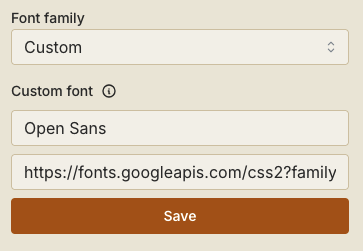
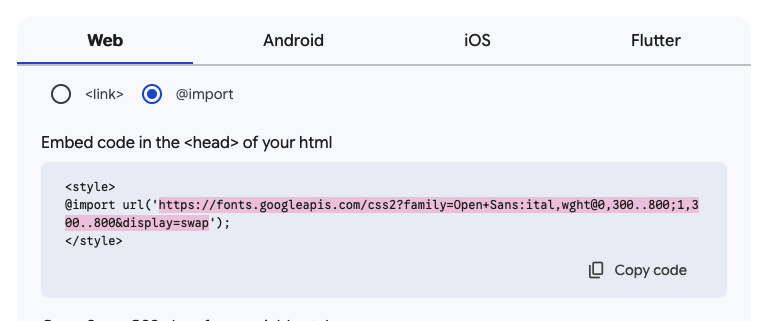
In the URL field, add this URL of a Google font:
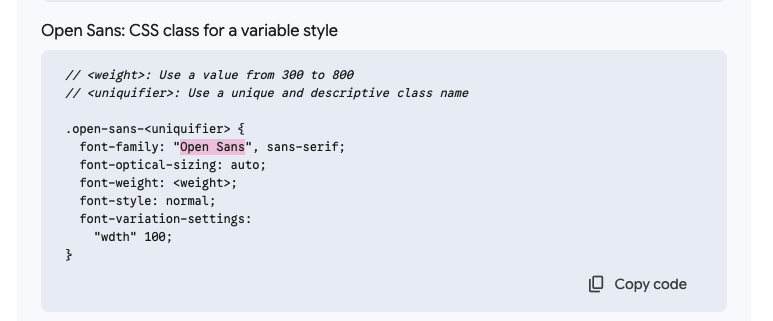
Then, in the Name field, add the name of said font:
Installing as PWA
You can install Storyteller as a progressive web app (PWA) on your device if you wish to do so. Currently, this does not provide any additional features such as offline reading, but we might consider adding them in the future.
While technically possible to install Storyteller as a PWA on some mobile devices in most regions, we recommend using the Storyteller mobile apps instead.
Chromium based browsers (Chrome, Edge, Brave, Vivaldi, etc.)
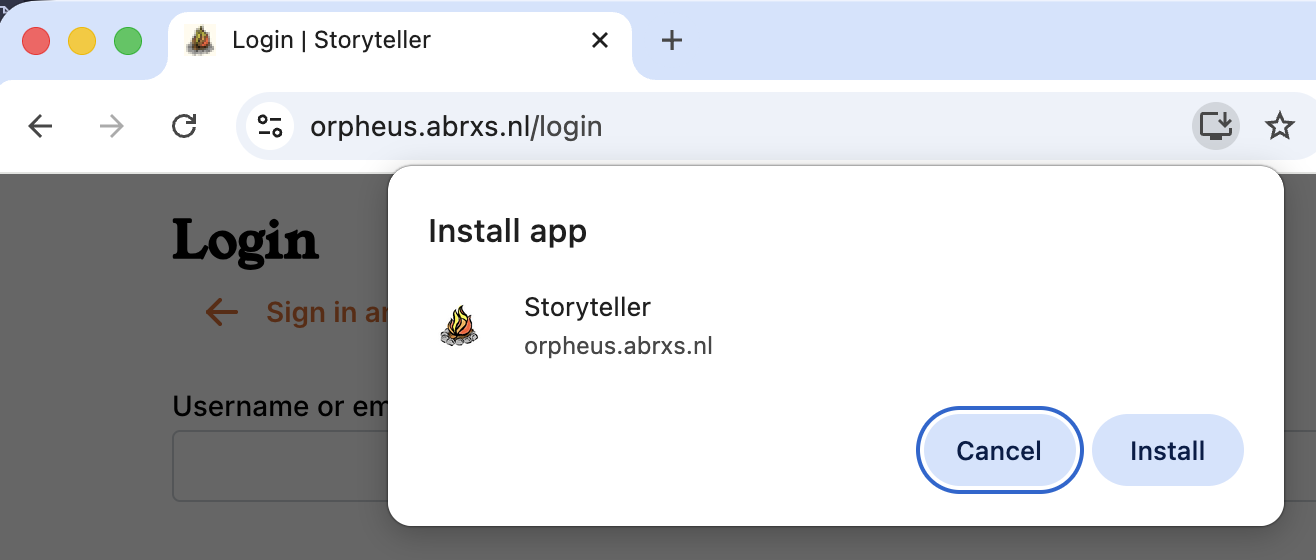
When opening Storyteller in a Chromium based browser on any desktop OS (Windows, macOS, Linux), you will be prompted to install it as a PWA.
Firefox
Firefox recently added support for installing PWAs on Windows. This may extend to other browsers based on Firefox (e.g. Zen).
To enable this, you need to either go to
Settings > Firefox Labs > Add sites to your taskbar.
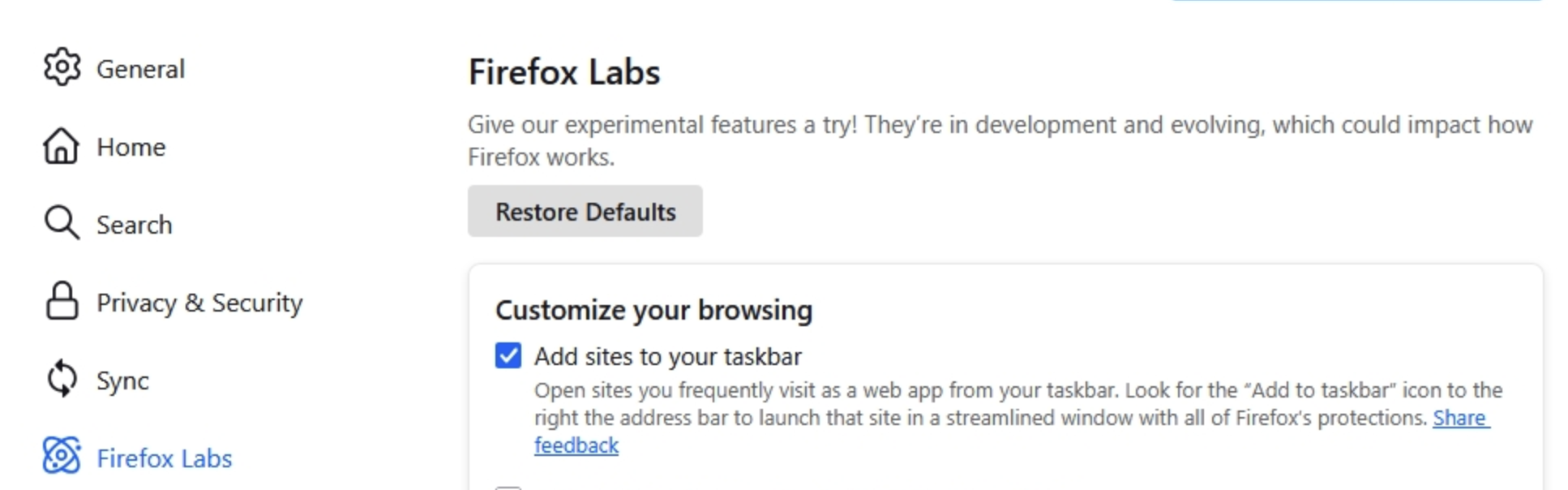
Or, you can set browser.taskbarTabs.enabled to true in the about:config
page.

Note that if you do not see the Firefox Labs option, you are likely either using a non-Windows OS or you are using a version of Firefox that does not support this feature, and won't be able to install Storyteller as a PWA.
Safari and Webkit based browsers
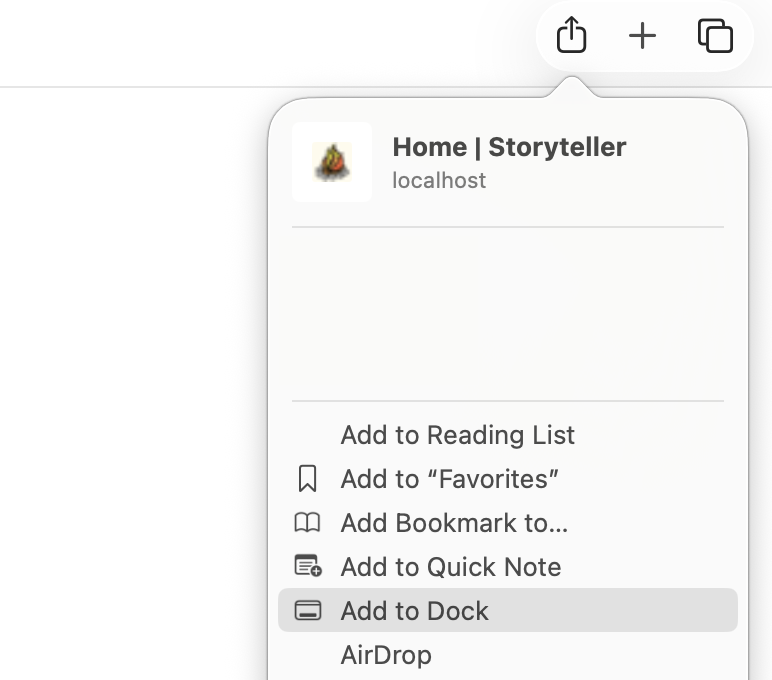
Simply click Share on the Storyteller web interface, and select Add to Dock
Browser specific behavior
For the smoothest and most bug-free experience we recommend using a Chromium based browser to read your books.
Chromium based browsers (Chrome, Edge, Brave, Vivaldi, etc.)
Chromium based browsers support an additional picture-in-picture mode, which allows you to easily pause and resume reading/listening to your book while doing something else. You will notice it when tabbing out of the browser and back in.
This behavior is not supported in other browsers until they implement the Document Picture-in-Picture API.
Safari and Webkit based browsers (e.g. Orion)
Safari users may experience some more buggy behavior, as a few Safari specific workarounds are in place.
Firefox and Firefox based browsers (e.g. Zen)
Firefox has suboptimal performance when skpping through audio, eg when manually navigating pages/chapters/sentences. Some audio distortion may be be heard when pausing or unpausing.
This is likely due to the way Firefox handles audio and video, namely by destroying and recreating the audio stream when seeking. This may vary depending on your operating system.
Related bugs: