Sharing your books
Inviting friends and family
Afer you have done all the hard work to set up your amazing library, you may wish to invite friend and family to your Storyteller server.
Rather than sharing a username and password, you should set up separate accounts for each user. Setting up separate accounts will allow you to grant specific permissions to each user.
In most cases, you'll want your users to have the "Basic User" capabilities, which allows them to see the list of books on the server and download and play individual books.
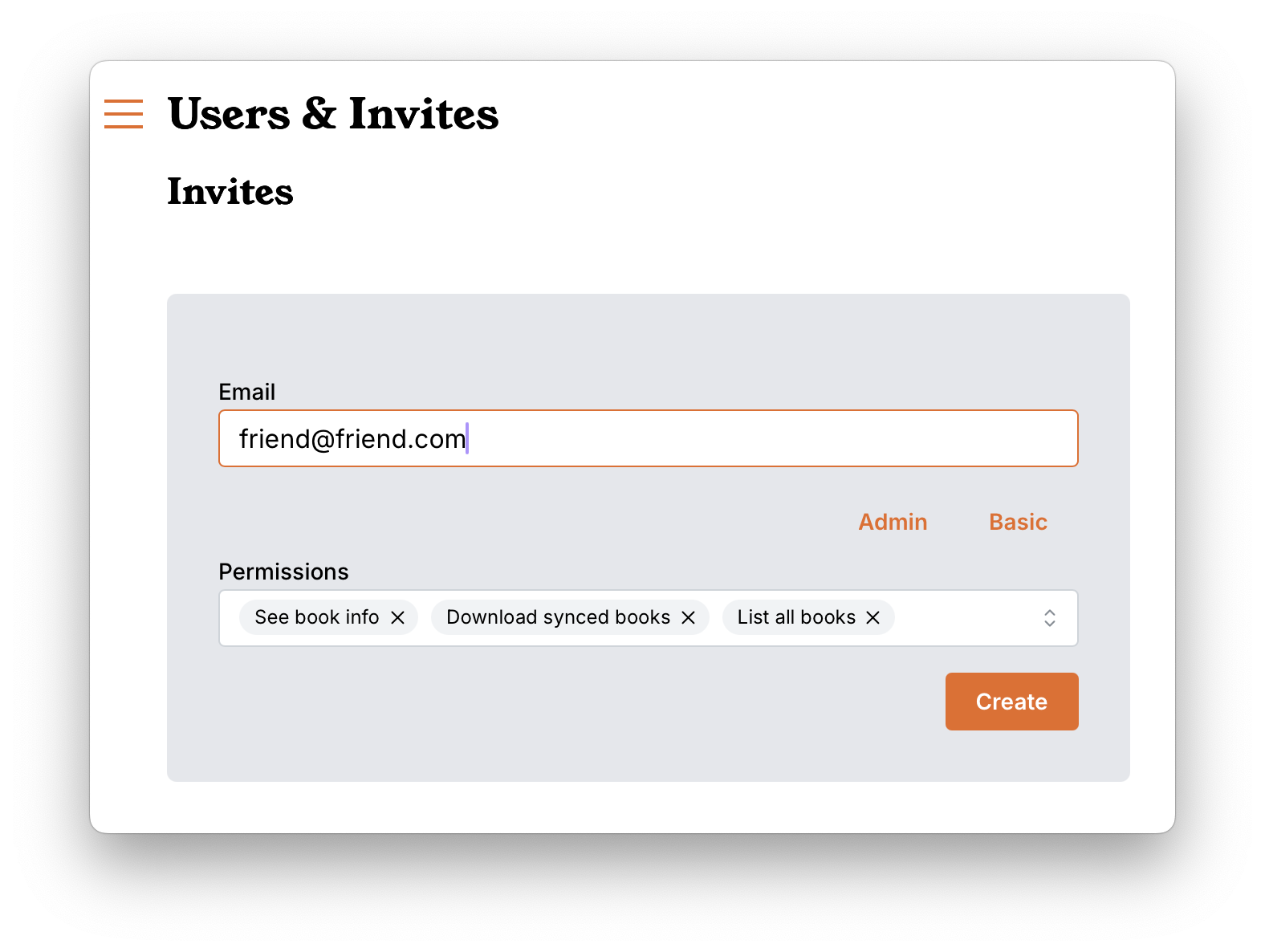
Sharing invite links via email
If you have set up Storyteller’s email settings, you can use them to send the invite directly from Storyteller.
Hello!

You've been invited to the "Friedmans" Storyteller library.

You can accept your invite by following this link:

https://storyteller.example.com/invites/a3b1138a68b3
Manually sharing invite links
If you haven't set up email in Storyteller, you can also simply copy the invite link that Storyteller provides for you and share it with your intended users.
Make sure to have your web URL properly set up in library settings before you share any invites as the web URL is part of the invite code that is generated.
You may also want to send them a link to this page in the documentation to help them get up and reading as quickly as possible.
User permissions
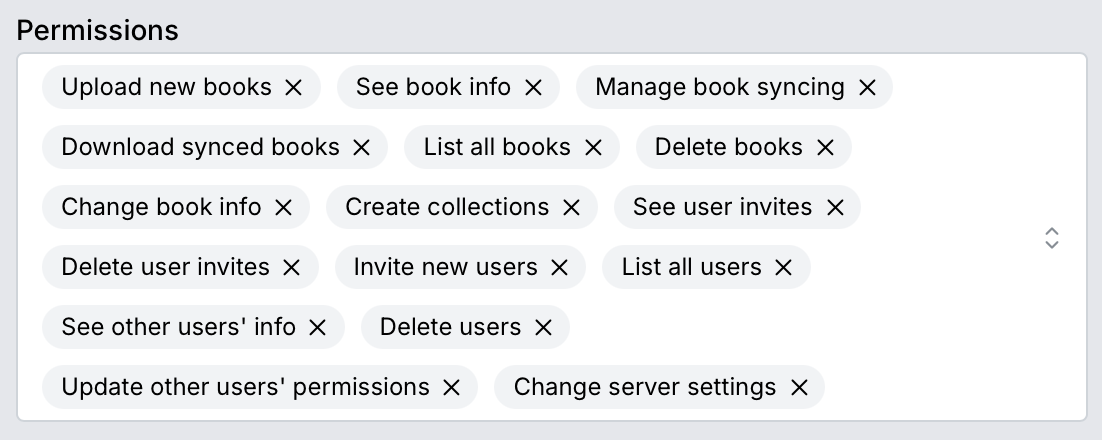
You can also invite additional administrators, or give users fine-grained permissions (for example, you may choose to give a user the capability to add and align new books, but not to invite new users).
Basic permissions
In order for users to be able to easily navigate and play books, these basic settings are required in order to see and play any books.
- Download books - allows downloading of books to a device and playing/reading/listening to books in the app.
- List books - allows the user to view all books for which they have been given permission. If they are only invited to a particular collection, they will only see the books in that collection.
- Deprecated?? - See book details - allows basic users to see the details page for individual books. When not selected the book will still be playable and downloadable, but the details page will not be visible. Be aware that if they download the book any embedded metadata will be visible in other applications.
Advanced permissions
These advanced functions should probably be reserved for other administrators of your instance.
- Books - Upload new books, manage book syncing
- Collections - Create collections
- Invitations - See, create new, and delete invites
- Users - list, see info, delete, change other user's permissions
- Server - Change server settings
Resetting a password
If you need to reset a password for any user (including admins) you can do so by running a script on the docker service supplying either the username or email of the user you wish to reset. This can be done with:
# With a username
$ docker exec -it <container-name-or-id> scripts/reset-password.sh --username <username>

# With an email
$ docker exec -it <container-name-or-id> scripts/reset-password.sh --email <email>